What Docker.raw is
Containers need a Linux kernel, so Docker Desktop on a Mac runs a small Linux virtual machine. Docker's Mac FAQ says it keeps Linux containers and images in "a single, large 'disk image' file" on your Mac. Every image, container, volume and bit of build cache lives inside it. The default path is:
~/Library/Containers/com.docker.docker/Data/vms/0/data/Docker.rawIf you changed it, Docker Desktop shows the current path under Settings → Resources → Advanced → Disk image location. Docker's docs say not to move the file in Finder, because Docker Desktop can lose track of it. Use Browse in that setting instead.
Storage settings has no category for a Linux VM's disk. Apple defines System Data as files that don't fall into the other categories, so that is usually where Docker.raw ends up.
Why Finder shows 64 GB or 1 TB
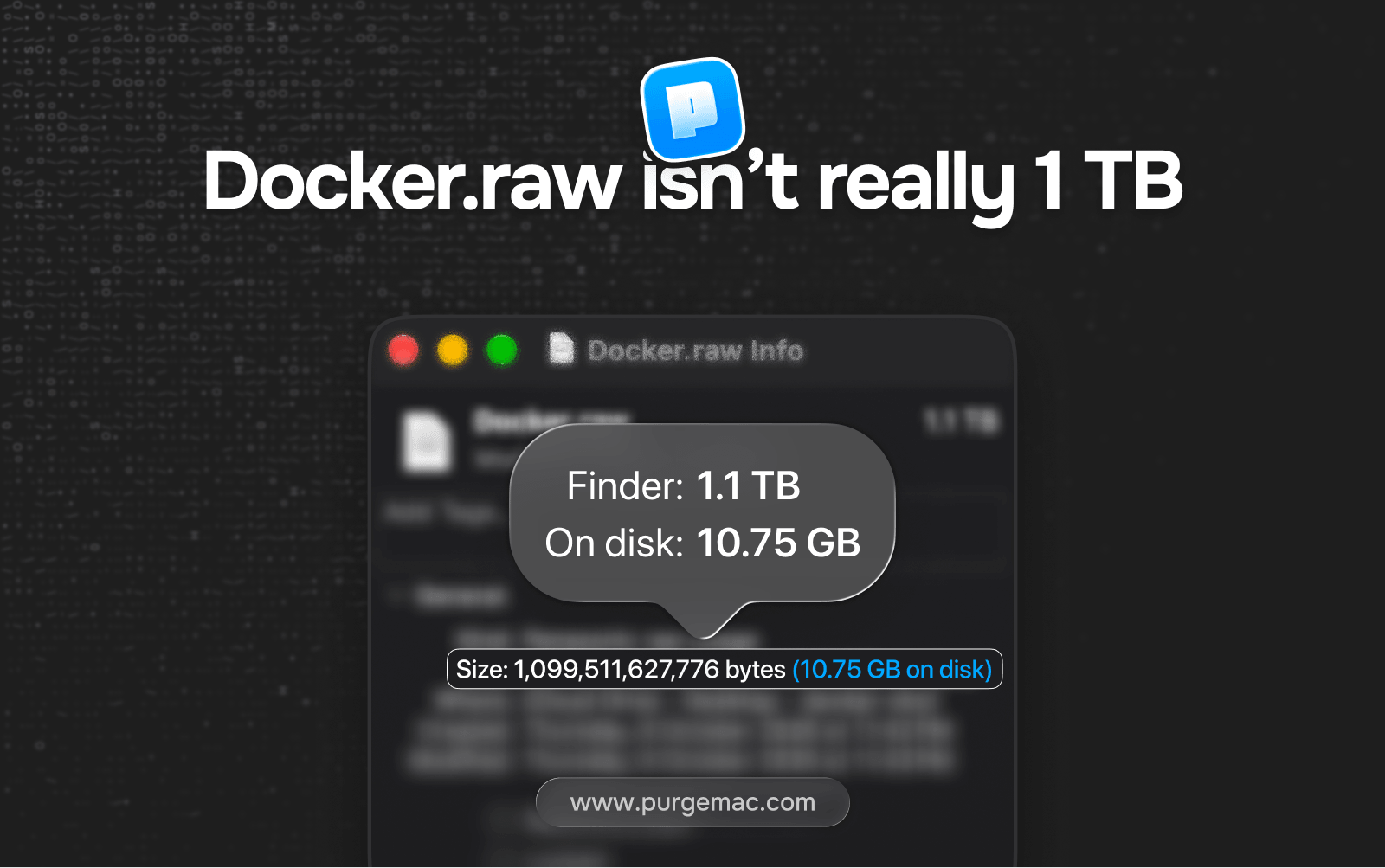
Docker.raw is a sparse file. It has a logical size, which is the most it is allowed to grow to, and an on-disk size, which is the blocks it actually uses. On APFS the unused part takes no space. Finder's size column, ls -l and plenty of cleaner apps show the logical size.
That cap has grown over the years. A Docker engineer described 64 GB as the default back in 2017, which is why so many old threads mention a 64 GB file. Docker Desktop 4.37 made 1 TB the default limit for new installs. Since 4.42, a fresh install or a reset to defaults sets the limit to the size of your physical disk. So a nearly empty Docker.raw can look as big as the drive it sits on.
When a user reported a 64 GB file in docker/for-mac issue #2297, a Docker engineer closed it as working as expected: ls -l shows the file's size, not the sectors the filesystem has actually allocated.
There is one case where the big number is real. Migration Assistant does not preserve sparse files. OrbStack's FAQ warns about this for its own disk image, and a commenter on the same Docker issue reported Migration Assistant copying the full 64 GB to a new Mac.
Copying the file yourself can do the same thing. Docker's old Mac release notes describe the raw disk format as using sparse files on APFS. A sparse file only allocates the blocks that hold data, and it stays sparse when copied from one local APFS volume to another. Copy it to HFS+, to any other filesystem, or across the network (SMB, AirDrop, or file sharing) and the copy is written out at the full logical size, the cap Finder shows, not the on-disk size from du. A local Time Machine backup to APFS keeps the sparse file. A Time Machine backup to HFS+ does not, because HFS+ has no sparse-file format.
Docker Desktop does not put the VM in Time Machine unless you ask. Settings → General → Include VM in Time Machine backups is off by default. Docker's settings page describes it as backing up the Docker Desktop virtual machine. If you want a copy of your own, Docker's backup docs say to copy Docker.raw with Docker Desktop fully stopped, and they say Time Machine includes ~/Library/Containers/com.docker.docker only when that directory is not excluded. Copy the file to an APFS volume. A copy onto a non-APFS disk takes the cap, not the size du reported.
How much space it really uses
Ask macOS for both numbers. These commands only read sizes:
cd ~/Library/Containers/com.docker.docker/Data/vms/0/data
ls -lh Docker.raw
du -h Docker.raw
ls -lh prints the cap. du -h prints what the file takes on disk. Docker's FAQ uses ls -klsh Docker.raw for the same check: the first number in that output is the real size in kilobytes. In Finder, Get Info shows both, as a byte count followed by a figure marked "on disk". Docker Desktop shows the same split under Settings → Resources → Advanced.
If du reports a few gigabytes, Docker isn't your space problem and you can stop here.
If it's large, look inside before deleting anything:
docker system df
docker system df -v
The first command lists images, containers, local volumes and build cache, each with a RECLAIMABLE column. The -v version breaks that down by image, container and volume. For build cache, docker buildx du shows each cache record for the current builder.
Before you prune, make sure the docker command is talking to Docker Desktop. OrbStack and Colima add their own Docker contexts, and Colima makes itself the default when it starts. A prune against the wrong context cleans the wrong VM and leaves Docker.raw alone.
docker context ls
docker context use desktop-linux
The image store you are not using
Docker Desktop keeps two image stores. The containerd store is the current one, and it is on by default. The other is the classic store. The switch is Settings → General → Use containerd for pulling and storing images. Docker's containerd docs say the stores are separate: when you switch, images and containers from the inactive store stay on disk, but they stay hidden until you switch back.
Hidden means the usual commands do not see them. docker system df reports the disk space the daemon is using for the store that is active. It does not list the hidden store, so a prune can look finished while Docker.raw is still large. On a Mac both stores live in that disk image. Docker's Mac FAQ says Linux containers and images are kept in the disk image file. There is no second file to delete in Finder.
To see the hidden store, flip the same checkbox, select Apply, then run:
docker image ls
docker system df -v
Prune with the commands in the next section, then switch back if you want the containerd store again. Do not dig through the VM for the old store. Docker shows it when that store is the active one.
Turning containerd on also does not move the classic images into the new store. You have a second copy until you switch back and prune. Docker's engine docs say the containerd image store uses more disk than the classic store for the same images, because it keeps each layer both compressed and uncompressed. The classic store kept only the uncompressed layers.
Model Runner models
Docker Model Runner is not an image. Docker's docs say a model is pulled from Docker Hub, another OCI registry, or Hugging Face, stored locally, and loaded into memory only while a request is running. On a Mac the inference engine does not run in a container. It runs in a sandbox on the host. docker system df reports images, containers, local volumes, and build cache. It has no row for these files. Model Runner has its own report:
docker model ls
docker model df
du -sh ~/.docker/models
docker model ls lists the models pulled to this machine. The table includes a SIZE column for each one. docker model df prints the total. Docker's model-runner stores them in ~/.docker/models unless MODELS_PATH is set. That directory is outside Docker.raw, which is why pruning images does not touch it. The du line is the folder to measure. If MODELS_PATH is set, measure that path instead.
Remove one model, or every model:
docker model rm <model>
docker model purge
docker model rm removes a local model. Docker's reference describes that command as removing models downloaded from Docker Hub. docker model purge removes all local models. You pull a model again the next time you want it. Leave the rest of ~/.docker in place. That directory also holds CLI config and plugins, covered with OrbStack and Colima below.
A cleanup order, cheapest mistakes first
Work down the list. Re-run docker system df and du -h Docker.raw as you go, and stop once you have enough room.
1. Stopped containers
docker container pruneDocker doesn't remove a stopped container unless you started it with --rm, and its writable layer still takes space. Anything a container wrote outside a volume goes with it.
2. Images
docker image prune
docker image prune -a
The first removes dangling images, which are untagged and not used by any container. The second removes every image that no container uses, tagged or not. The cost is a re-pull or rebuild the next time you need one. To keep recent images, add a filter such as --filter "until=240h".
3. Build cache
If you build images on this Mac, this is often the biggest line in docker system df. The cache is not a file sitting next to Docker.raw. It lives inside the disk image, so a large build cache is one reason Docker.raw is huge on Mac.
docker builder prune
docker builder prune -a
docker builder prune --keep-storage 5GB
docker builder prune removes dangling build cache. -a removes all unused build cache. --keep-storage is a cap for that one run: Docker's command reference says it is the amount of disk space to keep for cache, so a prune can leave recent cache in place. The example above keeps 5GB. That number is an illustration of the flag, not a size Docker recommends. The cost of a prune is a slower next build.
If you've created extra builders with buildx, each one keeps its own cache. List them with docker buildx ls and prune one with docker buildx prune --builder <name>. Settings → Builders in Docker Desktop shows disk usage for each active builder.
BuildKit also trims cache on its own. Docker's garbage collection docs separate that from prune: prune runs when you ask, and GC runs periodically, walking an ordered list of policies when the cache is too big or too old. The docs say the default is enough for most people.
On Docker Desktop the default builder uses the docker driver, and its GC settings are the daemon configuration under Settings → Docker Engine. Docker publishes this default:
{
  "builder": {
    "gc": {
      "defaultKeepStorage": "20GB",
      "enabled": true
    }
  }
}
defaultKeepStorage is the size limit those policies use. At the documented 20GB default they resolve to four rules: remove local build contexts, Git checkouts, and cache mounts that have not been used for 48 hours once that kind of cache exceeds 13.8% of the limit (2.764GB at 20GB), with a floor of 512MB; remove unused cache older than 60 days; remove unshared cache past the limit; then remove any cache past the limit. Lower defaultKeepStorage when you build on a small disk. Raise it when GC is dropping cache you still want. A custom policy array in that same JSON replaces the defaults. Apply from the Docker Engine screen so the daemon restarts with the new limit. GC deletes cache inside the VM. It does not, by itself, change the number Finder shows for Docker.raw.
defaultKeepStorageis now the old name for this setting. Docker Engine 28.0 renamed the build cache's keep setting to reserved space, and the engine source marks defaultKeepStorage as deprecated and reads it as defaultReservedSpace. If you set both, defaultReservedSpace wins. Docker's dockerd reference uses defaultReservedSpace in its example config, while Docker's garbage collection page still shows the Docker Desktop default with the old name. Both work. To move to the new name, change the key and keep the value.
Or run docker system prune and do all three at once
docker system pruneThis removes stopped containers, unused networks, dangling images and unused build cache in one go, after it lists what it will remove and asks you to confirm. Add -a to include every unused image. It leaves volumes alone unless you add --volumes, and even then it only removes anonymous ones.
4. Volumes, last and by hand
Volumes are where databases and other container data live between runs. Docker's docs say volumes "are never removed automatically, because to do so could destroy data." The volume behind a local Postgres or MySQL may hold the only copy of that data.
docker volume ls
docker system df -v
docker volume rm <name>
Remove named volumes one at a time once you know what each one holds. docker volume prune only removes anonymous volumes that no container uses. docker volume prune -a also removes unused named volumes, and it's the command on this page to be most careful with. To keep a volume's contents, Docker's storage docs show how to back it up to a tar file first.
Why Docker.raw doesn't shrink on its own
The disk image grows as images and build cache land inside the VM. Deleting that data frees space in the VM. It does not instantly return those blocks to macOS, and it never lowers the logical size Finder prints. That figure is the cap.
How long the host waits depends on the disk image format. Docker's FAQ for Docker Desktop on Linux, which uses the same two file names, says that if the file is named Docker.raw, space on the host "should be reclaimed within a few seconds." If it is named Docker.qcow2, the older format, "space will be freed by a background process after a few minutes." The Mac FAQ gives no split and only says it "might take a few minutes." Both say space is freed when images are deleted, not when files are deleted inside running containers. BuildKit's garbage collector is the same shape of cleanup: it deletes cache inside the disk image on its policies, and the host file catches up afterwards. Docker Desktop 4.20 sped up reclaiming space when files are deleted in containers. After a prune, wait, then run du -h Docker.raw again. ls -lh will keep showing the cap. Settings → Resources → Advanced shows the same split.
The FAQ also offers a command to force reclaim:
docker run --privileged --pid=host docker/desktop-reclaim-spaceOn Apple silicon, don't rely on it. The image on Docker Hub is amd64 only and was last pushed in 2019, and a pull request to Docker's docs says it doesn't work on Apple silicon.
Check for a leftover Docker.qcow2
Docker for Mac used to keep the VM in a Docker.qcow2 file. Its archived release notes show the move to raw disks on APFS in 2018, and they say "existing disks are kept in qcow format" until you remove all data or reset to factory defaults. So a Mac that has run Docker since before then can still hold the old file, and none of the prune commands touch it. Look for it, and compare its date with Docker.raw:
find ~/Library/Containers/com.docker.docker -name "Docker.qcow2" -exec du -h {} +
find ~/Library/Containers/com.docker.docker \( -name "Docker.raw" -o -name "Docker.qcow2" \) -exec ls -lT {} +
If the first line prints nothing, there is no leftover. In docker/for-mac issue #5998, a Docker engineer asked users to search this folder the same way, and the Docker.qcow2 files they found sat at ~/Library/Containers/com.docker.docker/Data/vms/0/Docker.qcow2, one folder above where Docker.raw lives today. Docker's 4.1.1 release notes say that when both files exist, Docker Desktop uses the one modified most recently.
It is safe to remove when both of these are true:
- Docker Desktop is using Docker.raw: with Docker Desktop running,
Docker.rawshows a newer date thanDocker.qcow2, anddocker image lslists the images you work with. IfDocker.qcow2is the newer file, Docker is still running on it. Leave it, and use the prune steps above instead. - You don't need what is inside it: images, containers and volumes that only exist in the old file go with it. Docker's notes give one way back to the old file: delete the newer Docker.raw, which throws away everything in that one.
Quit Docker Desktop, move Docker.qcow2 to the Trash, then start Docker Desktop and check that docker image ls still lists your images before you empty the Trash.
The options that wipe everything
These make Docker.raw small in one step by throwing away what's in it. Back up first: push images you built to a registry or save them with docker image save -o images.tar <image>, and back up any volume you care about.
Lower the Disk usage limit
It's in Settings → Resources → Advanced. Docker's FAQ still calls it Disk image size, and some older versions showed Virtual disk limit. The FAQ says that when you reduce the maximum size, "the current disk image file is deleted, and therefore, all containers and images are lost." The confirmation dialog says volumes go too. Some guides claim a smaller limit keeps data that fits. Docker's docs say it doesn't.
Clean up data
Open Troubleshoot from the Docker menu bar icon or the question mark at the top right of the Dashboard. Docker's docs say this disk image reset "destroys all Docker containers and images local to the machine, preserving all settings." Older versions labeled it Clean / Purge data.
Or move it instead
If you need the room but can't lose the data, Settings → Resources → Advanced → Disk image location moves Docker.raw to a bigger drive.
What is safe and what you lose
| What | How | What you lose |
|---|---|---|
| Stopped containers | docker container prune | Files written inside them, outside volumes |
| Dangling images | docker image prune | Untagged layers nothing uses |
| Unused images | docker image prune -a | A re-pull or rebuild |
| Build cache | docker builder prune -a | A slower next build |
| Anonymous volumes | docker volume prune | Whatever was in them |
| Named volumes | docker volume rm <name> | Possibly the only copy of a database |
| The inactive image store | Switch stores, then prune | Images and containers in the store you switched off |
| Model Runner models | docker model rm | That model, until you pull it again |
| A leftover Docker.qcow2 | Trash it once Docker.raw is the newer file | Anything that only lived in the old disk |
| The whole disk image | Disk usage limit, Clean up data | Everything in the disk image, both image stores included |
If you use OrbStack or Colima
OrbStack stores Docker data in a sparse data.img file. Its FAQ says the file shows as 8 TB, only takes what you use, and shrinks on its own when you delete data. To check the real size:
du -h ~/Library/Group\ Containers/HUAQ24HBR6.dev.orbstack/data/data.imgColima's FAQ says space freed inside its VM is released on startup from v0.5.0, or right away with colima ssh -- sudo fstrim -a. Its disk can only be made bigger after creation. colima prune only empties Colima's cache of downloaded assets, not your Docker data.
The prune commands above work in both once the right context is active.
If you moved off Docker Desktop, its data may still be there. Docker's uninstall docs say the uninstall command can leave ~/Library/Containers/com.docker.docker behind, and that you can remove it later once Terminal has Full Disk Access. Measure it first with du -sh. The same page lists ~/.docker as a leftover. That folder is not only Docker Desktop's. The docker command still uses it with Colima or OrbStack, and Colima's FAQ installs the buildx plugin into ~/.docker/cli-plugins, so leave the folder if you still run Docker another way. The exception is ~/.docker/models, above: those are Model Runner models, and docker model rm removes them without deleting the rest of ~/.docker.
Doing it with an app
Docker's own commands are still the right tool for what is inside Docker.raw. Purge only sees the disk image: it shows the space used on disk, marks the folder Check First, and never cleans it on a schedule. If you delete that folder anyway, the whole thing goes to the Trash, images and volumes included. The prune steps above do the same job by hand. How that compares with a paid cleaner is in the CleanMyMac alternative.
Frequently asked questions
Where is Docker.raw on a Mac?
By default at ~/Library/Containers/com.docker.docker/Data/vms/0/data/Docker.raw. If you moved it, Docker Desktop shows the current path under Settings, Resources, Advanced, Disk image location.
Can I just delete Docker.raw?
You can, but it wipes every image, container, and volume at once, and Docker Desktop creates a fresh empty disk the next time it starts. If that is what you want, use Clean up data in Docker's Troubleshoot menu instead, which does the same thing through Docker's own UI. If you want to keep your data, prune inside Docker.
Why doesn't Docker.raw shrink after docker system prune?
It depends on the disk format. Docker's FAQ says a Docker.raw file should give space back to the host within a few seconds, while the older Docker.qcow2 format frees it in a background process after a few minutes. Space comes back when images are deleted, not when files are deleted inside running containers. Check again with du -h Docker.raw. Finder's size column will not change, because it shows the cap.
Does docker system prune delete volumes?
No. It removes stopped containers, unused networks, dangling images, and unused build cache. Volumes are only touched if you add --volumes, and even then only anonymous volumes go. Named volumes need docker volume rm or docker volume prune -a.
I switched image stores and docker system df got smaller. Is the space free?
Not yet. Docker Desktop keeps a separate classic store and a containerd store. Switching hides the inactive store's images and containers, but they stay on disk, and docker system df does not list a store that is hidden. Switch the setting back, prune, then switch again.
What is ~/.docker/models?
Docker Model Runner's default directory for models it has pulled, unless MODELS_PATH is set. They are not images, so docker system df does not list them. docker model ls lists them, docker model df shows how much disk they use, and docker model rm removes one. The rest of ~/.docker is CLI config and plugins. Leave that if you still use Docker with Colima or OrbStack.
Sources
- Docker, FAQs for Docker Desktop for Mac (disk image location,
ls -klsh,docker system df -v,docker system prune, desktop-reclaim-space, Disk image size): docs.docker.com/desktop/troubleshoot-and-support/faqs/macfaqs/ - Docker, FAQs for Docker Desktop for Linux (Docker.raw reclaimed within a few seconds, Docker.qcow2 after a few minutes): docs.docker.com/desktop/troubleshoot-and-support/faqs/linuxfaqs/
- Docker, Change your Docker Desktop settings (Resources → Advanced: Disk usage limit, Disk image location; General: Use containerd for pulling and storing images, Include VM in Time Machine backups): docs.docker.com/desktop/settings-and-maintenance/settings/
- Docker, Troubleshoot Docker Desktop (Clean up data): docs.docker.com/desktop/troubleshoot-and-support/troubleshoot/
- Docker, Docker Desktop release notes (4.1.1 both Docker.qcow2 and Docker.raw present, 4.20 faster reclaim, 4.37 1TB default, 4.42 physical disk default): docs.docker.com/desktop/release-notes/
- Docker, Prune unused Docker objects: docs.docker.com/engine/manage-resources/pruning/
- Docker,
docker system df: docs.docker.com/reference/cli/docker/system/df/ - Docker,
docker system prune: docs.docker.com/reference/cli/docker/system/prune/ - Docker,
docker image prune: docs.docker.com/reference/cli/docker/image/prune/ - Docker,
docker builder prune: docs.docker.com/reference/cli/docker/builder/prune/ - Docker,
docker buildx pruneanddocker buildx du: docs.docker.com/reference/cli/docker/buildx/prune/, docs.docker.com/reference/cli/docker/buildx/du/ - Docker, Build garbage collection (defaultKeepStorage): docs.docker.com/build/cache/garbage-collection/
- Docker,
dockerdreference (daemon configuration file withdefaultReservedSpace): docs.docker.com/reference/cli/dockerd/ - Docker, Engine 28 release notes (28.0.0 renames keep-bytes to reserved-space, moby/moby#48720): docs.docker.com/engine/release-notes/28/
- GitHub, moby/moby
daemon/config/builder.go(defaultKeepStoragedeprecated, read asdefaultReservedSpace) and pull request #48720: github.com/moby/moby daemon/config/builder.go, github.com/moby/moby/pull/48720 - Docker,
docker volume prune: docs.docker.com/reference/cli/docker/volume/prune/ - Docker, Volumes (back up, restore, or migrate data volumes): docs.docker.com/engine/storage/volumes/
- Docker, Back up and restore your Docker Desktop data (
docker image save): docs.docker.com/desktop/settings-and-maintenance/backup-and-restore/ - Docker, Uninstall Docker Desktop: docs.docker.com/desktop/uninstall/
- GitHub, docker/for-mac #2297, Docker.raw reserving too much size: github.com/docker/for-mac/issues/2297
- GitHub, docker/for-mac #6475, Docker.raw takes too much disk storage space on MacOS: github.com/docker/for-mac/issues/6475
- GitHub, docker/for-mac #5998, Images, volumes and networks lost after update to 4.1.0 (Docker.qcow2 location): github.com/docker/for-mac/issues/5998
- GitHub, docker/docs #15407, Replace docker/desktop-reclaim-space that doesn't work on Apple Silicon: github.com/docker/docs/pull/15407
- Docker Hub, docker/desktop-reclaim-space: hub.docker.com/r/docker/desktop-reclaim-space
- Docker Community Forums, Trouble downsizing Docker.raw using Docker Desktop: forums.docker.com/t/trouble-downsizing-docker-raw-using-docker-desktop/138443
- Ask Different, What is the purpose of Docker.raw file on Mac OS Catalina?: apple.stackexchange.com/questions/391377
- Ask Different, Can I delete the Docker folder in Library/Containers that takes up 64gb?: apple.stackexchange.com/questions/446385
- Stack Overflow, Docker filling up storage on macOS: stackoverflow.com/questions/39878939
- Apple, Storage settings (System Data definition): support.apple.com/guide/mac-help/mchl3d437fbc/mac
- OrbStack, FAQ (sparse data.img, Migration Assistant): docs.orbstack.dev/faq
- Colima, FAQ (disk space recovery) and Configuration (disk size): colima.run/docs/faq/, colima.run/docs/configuration/
- Docker, containerd image store (separate classic and containerd stores; inactive images stay on disk but hidden): docs.docker.com/desktop/features/containerd/
- Docker, containerd image store with Docker Engine (compressed and uncompressed layers): docs.docker.com/engine/storage/containerd/
- Docker, Docker Model Runner (local model cache; macOS inference runs in a sandbox, not a container): docs.docker.com/ai/model-runner/
- Docker,
docker model ls,docker model rm,docker model df, anddocker model purge: docs.docker.com/reference/cli/docker/model/list/, docs.docker.com/reference/cli/docker/model/rm/, docs.docker.com/reference/cli/docker/model/df/, docs.docker.com/reference/cli/docker/model/purge/ - Docker, model-runner
ModelsPath(default~/.docker/models, overrideMODELS_PATH;docker model lsSIZE column): github.com/docker/model-runner pkg/envconfig/envconfig.go, github.com/docker/model-runner cmd/cli/commands/list.go - Docker, release notes for previous versions (raw VM disks use sparse files on APFS; existing disks kept in qcow format): docs.docker.com/desktop/previous-versions/archive-mac/
- Eclectic Light, APFS incompatibilities (sparse files expand off APFS, including HFS+ Time Machine and network copies): eclecticlight.co/2024/10/08/apfs-incompatibilities-and-how-to-live-with-them/